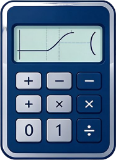
Classic 991 (this site's default skin) Manual
This site's default skin, reusing the ES PLUS key layout (47 keys / 9 rows); only the color scheme and the top silkscreen line differ.
CalcMode · 1 models · 47 keys / 9 rows · updated 2026-11-02
This layout is structurally identical to ES PLUS: 47 keys in 9 rows, with the two-tier SHIFT/ALPHA silkscreen labels in the same places. The only differences are the colors of the body and keycaps, and the fact that the brand line at the top shows this site's name.
Why the default skin gets a page of its own
Because the default model decides which keyboard anyone sees the first time they open /calculator. Listing it as its own page lets readers keep the site's default appearance clearly apart from a real model - only the latter can be compared against silkscreen labels, keys, and a manual. The default skin takes part in no specification comparison of manufacturer models.
Three position anchors
The default skin is isomorphic with ES PLUS, so the key descriptions on the two pages can be read against each other. If you only want to find one key quickly, these three anchors beat memorizing the whole table.
| Key you want | Position | Neighbouring key |
|---|---|---|
| DEL / AC | The two rightmost cells of row 6 (bottom to top) | Directly next to digit 9 |
| Negative sign (−) | Far left of row 4 | Not the same key as the minus sign −, which sits in the number area |
| Equals = | Bottom row, far right | Ans to its left, ×10ˣ to the left of that |
When to switch to a specific model
- To work through problems against the real silkscreen labels: switch to the manual of the series that model belongs to; the default skin does not serve that purpose.
- To tell a teacher or classmate which model you have: the default skin has no manufacturer model number, and saying "CLASSIC 991" will mislead them.
- To compare specifications (battery, size, year): only the specification table on a model page makes sense here, and the default skin is not part of those comparisons.
Its relationship to ES PLUS
- The key count, the rows, and every key's position and secondary silkscreen label are identical, so you can cross-check against the silkscreen table in the ES PLUS manual.
- The colors are site settings that match no real unit, so do not use them to compare against photographs.
- When you need a strict reproduction of a real unit, choose the specific model inside that series' manual.
What jobs it does on this site
Three jobs, all concrete. First, it is the initial state of /calculator: whoever opens the online calculator for the first time sees this key layout, and every later switch is measured against it. Second, it is the shared look of the tutorial artwork - the key sequences on the task pages, the diagrams in the manuals, and the on-screen keyboard all use one copy of the layout data, so text and pictures cannot disagree. Third, it is the baseline for the isomorphic series: ES PLUS, ID PLUS, and several regional versions have the same keys as it, which makes it the shortest way to describe their differences.
Recognise the keyboard in four zones
Rather than memorizing every key name, learn the four zones first. The positions in the table below are relative descriptions instead of fixed row numbers - row heights and shell sizes are not the same across real units, so hard-coding row numbers would mislead.
| Zone | Roughly where | Typical keys | Job |
|---|---|---|---|
| Function-layer row | Top row of the key faces | SHIFT, ALPHA, MODE | Decides which layer the next key uses, and which mode you enter |
| Math function area | Upper middle | sin, cos, tan, log, ln, √, x², x^ | Single-argument functions, most of them with a SHIFT secondary function |
| Digits and operators | Lower middle, biased to the right | 0-9, the four arithmetic operations, the decimal point | Entering data and doing arithmetic - the most used and the easiest to hit by feel |
| Editing and evaluation | Right of the number area, and the bottom row | DEL, AC, =, Ans | Fixing mistakes, clearing the screen, evaluating, reusing the previous result |
One key carries up to three printed layers
This site's layout data splits every key into four fields: the main silkscreen label, the small print above, the small print at the upper right, and the small print below. Rendering draws strictly from those four fields, so what the key face and the space above it say in the diagram agrees with the data completely - the text cannot claim a SHIFT-layer function for a key that the diagram does not show.
- Main label: the function that takes effect directly, with no function layer.
- Small print above and at the upper right: the SHIFT layer - press SHIFT first, then the key.
- Small print below: the ALPHA layer, mostly variables and a few constants.
- A key with no value in a given field does nothing in that layer; the silkscreen table shows "—".
Visible differences from a real unit's appearance
- The colors are site settings (body, keycaps, digit-key contrast) and correspond to no real unit.
- The brand line at the top shows the site name, not a manufacturer logo or model number.
- No model suffix: the PLUS, C, and various regional suffixes found on real units do not exist in this skin.
- The shell and keycaps are vector artwork rather than a photograph, so it takes on no duty of appearance identification.
Why not reproduce one specific real unit
Three practical reasons. One is branding: reproducing a specific model would involve the brand logo and the industrial design, which does not suit a site default appearance. Two is maintainability: real hardware iterates quickly, so a copy of one unit has to be re-versioned along with it, and the cost lands on details instead of content. Three is teaching reuse: one isomorphic key layout covers ES PLUS, ID PLUS, and the regional versions at the same time, so the key sequence for a given task in the how-to guides can be applied as written.
How to read it together with other pages
- Start on /calculator by choosing a specific model, so you know which generation's key layout you are studying.
- Look up the two-layer silkscreen table in that series' manual - it lists the labels exactly as printed on real units, including the regional languages.
- Come back to the how-to guides and read the key sequences grouped by series: the same task is written separately for each series.
What this skin cannot prove
- It cannot replace the feel of a real unit: key travel, the spring-back, and mis-press rates can only be judged on the hardware.
- It cannot prove that a given model has a given function: the function set is decided by the model, not by whether the key layout is isomorphic.
- It cannot be your exam-eligibility evidence: whether you may bring it, or whether you must enter a restricted mode, depends on the organizer's list for that year.
Three frequent questions
- "Is what I bought a CLASSIC 991?": no such model exists; that is the name of the site's default skin.
- "Why is my calculator a different color from the picture?": the colors are site settings, and real-unit colors vary by production batch and region.
- "The diagram has a key my calculator does not": you have a different generation or a different regional version; find the matching series by model name.
What the 991 in the name means
In the manufacturer's numbering, 991 sits in the fullest-featured tier of its generation, so using that number as the skin name reads like a real model. This site deliberately did not name it after a specific model, precisely to avoid the misunderstanding of "it looks like a 991ES PLUS, but it is not". Read the 991 in the name as a feature tier, not a model number.
The other direct consequence is searching: if you look for a "CLASSIC 991 manual", you will most likely find nothing, because it does not exist. To find documentation, search by the complete model name of the unit you own, or follow the series links on this page to the matching manual.
What if the diagram and your unit disagree
The secondary silkscreen labels in the diagrams are all transcribed from photographs of real units; where a photograph's resolution is too low to read a key, the data marks that key as pending verification instead of guessing. If your unit disagrees with the diagram, trust the labels printed on the unit and report the model and the keys that differ to us - silkscreen differences between regional versions are larger than most people expect, which is one reason this page insists on not tying the skin to a single model.
Models in this series
Frequently asked questions
These questions apply to this series. For the general ones, see all FAQ entries.
Why doesn't sin(30) come out to 0.5?
The model's current angle unit isn't DEG. On Casio ES/EX use SHIFT + SETUP or the menu to switch to Degree; on CW press SETTINGS to reach the angle unit; on TI press DRG or the mode key to switch. The D / R / G marker at the top of the screen is the current unit.
How do I restore factory settings?
Casio: open the setup menu and find Reset (on ES/EX it's the Reset after SHIFT + MODE, on CW it's inside SETTINGS), choose All and confirm; this clears memory, variables, and settings. TI: press 2ND + + (MEM) to enter the MEM menu and choose Reset, or remove the battery and wait a few seconds. Before resetting, write down any formulas and data you need to keep.
What if I only want to clear variables, not reset all settings?
The Casio Reset menu usually has three levels: Setup Data, Memory, and All. Choosing Memory clears only the variables and Ans while keeping the angle unit and display settings. On TI-84 the MEM menu reached with 2ND + + has separate All, Defaults, and Vars options; choose Vars.
What does Math ERROR mean?
The operation is mathematically undefined or out of range: division by 0, an even root of a negative number, tan(90°), or an overly large factorial argument all trigger it. Press AC or CLEAR to clear the line, then check the angle unit and order of operations. It doesn't mean the device is broken.
How do I locate a Syntax ERROR?
It's usually an unclosed parenthesis, two operators in a row, or a function missing an argument. On Casio use the arrow keys to move the cursor to the error and fix it; on TI-84 press 2 (Goto) to jump to the error location. Once fixed you don't need to retype the whole line.
Is Stack ERROR an out-of-memory problem?
It's a nesting or numeric stack overflow, not insufficient storage. It's common with deeply nested parentheses, repeated power operations, or very large factorials. Split the calculation into two steps and carry the intermediate result with Ans.
The result is always a fraction; how do I show it as a decimal?
On Casio press S⇔D (FORMAT on CW) to toggle between fraction and decimal; you can also change the result display to LineIO / Decimal in the settings. On TI press 2ND + ENTER (F◂▸D) or just enter the value with a decimal point. Toggling only changes the display, not the stored value.
How do I turn 0.375 into 3/8?
Enter 0.375 and press S⇔D (FORMAT on CW, 2ND + ENTER on TI) to try converting it to a fraction. If it won't convert, the decimal can't be represented within the current denominator precision (for example an approximation of a repeating decimal that was truncated).