TI-84 Plus Manual
Covers 1 models: 47 keys / 10 rows, with graphing, table, statistics and programming features.
Texas Instruments · 1 models · 47 keys / 10 rows · updated 2026-11-02
The TI-84 Plus is a graphing calculator with a keyboard in three bands: the top band holds the graph and window controls (y= / window / zoom / trace / graph), the middle band holds editing and menus (2ND / MODE / DEL / ALPHA / MATH / APPS), and the bottom band holds the digits and the four arithmetic operations. Its biggest difference from a scientific calculator is that you define first and draw second.
Ten rows of keys, read from the top down
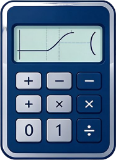
The TI-84 key layout is one row taller than a scientific calculator and has gaps inside its rows. Those gaps are not missing entries: the real unit simply has no key there. The rows are described top down below, in the same order as the diagram above.
| Row (top down) | Key layout | What this row handles |
|---|---|---|
| Row 1 | Y= / WINDOW / ZOOM / TRACE / GRAPH | |
| Row 2 | 2ND / MODE / DEL / Arrow keys | |
| Row 3 | ALPHA / X,T,θ,n / STAT | |
| Row 4 | MATH / APPS / PRGM / VARS / CLEAR | |
| Row 5 | x⁻¹ / SIN / COS / TAN / ^ | |
| Row 6 | x² / , / ( / ) / ÷ | |
| Row 7 | LOG / 7 / 8 / 9 / × | |
| Row 8 | LN / 4 / 5 / 6 / − | |
| Row 9 | STO▸ / 1 / 2 / 3 / + | |
| Row 10 | ON / 0 / . / (−) / ENTER |
The standard workflow for graphing a function
- Press y= to enter function editing and write the expression into Y1.
- Press window to set the x and y ranges and scales; a wrong range makes the graph invisible, which is not a calculation error.
- Press graph to plot.
- Press trace to move the cursor along the curve and read points, with the left and right direction keys jumping between neighbouring curves.
- Press zoom to magnify a region, useful for values near an intersection or a zero.
How the table and the graph work together
2ND + GRAPH opens TABLE and 2ND + WINDOW opens TBLSET. There, Independent decides whether x is generated automatically from the step (Auto) or typed by you one value at a time (Ask); Dependent decides whether y is computed automatically or entered by hand. When you are bracketing a zero, first let the table scan the interval with a small step, find where the sign goes from positive to negative, then return to GRAPH and use zero under CALC to pin it down exactly. Those two steps are far faster than dragging blindly on the graph, and you are less likely to miss a root.
Editing and second functions
- 2ND: the second-function layer; everything printed above the key face (QUIT, INS, MEM) lives there.
- ALPHA: the letter layer, used to type A-Z and θ, which you need constantly for solving equations and programming.
- DEL: deletes the character at the cursor; CLEAR: clears the current line or leaves the current screen.
- ENTER: executes and confirms; pressing ENTER on the home screen re-evaluates the previous expression.
The two pages of settings under MODE
MODE on the TI-84 is not a function picker; it is a full screen of global settings spread over two pages (move with the direction keys, highlight an item and press ENTER to select it). Most wrong answers start on this screen.
- Normal / Sci / Eng: results display in normal, scientific or engineering notation; it only affects the display.
- Float and 0-9: the number of decimal places, with Float automatic and a digit fixed.
- Degree / Radian: the angle unit, which you must check before any trigonometry.
- Func / Param / Polar / Seq: the graphing mode; you have to switch it to draw parametric equations or polar curves.
- Connected / Dot: whether curves are joined point to point, and with sparse sampling Dot shows the discreteness better.
- Sequential / Simul: whether multiple curves are drawn one at a time or all at once.
- Real / a+bi / re^θi: the display form of complex results.
- Full / Horiz / G-T: full screen, horizontal split, or graph and table split.
Three places to watch on the screen
| Position | What it shows | When to check |
|---|---|---|
| Top right | The battery level indicator | Check before the exam; graphing slows down when the battery is low |
| Top left | Whether 2ND / ALPHA is currently active | If you press a function layer and then forget about it, the next key press gets swallowed |
| Status line | The active MODE settings (angle unit, complex format, split screen) | Glance at it before switching problem types: faster than debugging afterwards |
2nd-layer silkscreen labels
| Key | SHIFT layer | ALPHA layer |
|---|---|---|
| Y= | STAT PLOT / F1 | — |
| WINDOW | TBL SET / F2 | — |
| ZOOM | FORMAT / F3 | — |
| TRACE | CALC / F4 | — |
| GRAPH | TABLE / F5 | — |
| MODE | QUIT | — |
| DEL | INS | — |
| ALPHA | A-LOCK | — |
| X,T,θ,n | LINK | — |
| STAT | LIST | — |
| MATH | TEST / A | — |
| APPS | ANGLE / B | — |
| PRGM | DRAW / C | — |
| VARS | DISTR | — |
| x⁻¹ | MATRIX / D | — |
| SIN | SIN⁻¹ / E | — |
| COS | COS⁻¹ / F | — |
| TAN | TAN⁻¹ / G | — |
| ^ | π / H | — |
| x² | √ / I | — |
| , | EE / J | — |
| ( | { / K | — |
| ) | } / L | — |
| ÷ | e / M | — |
| LOG | 10ˣ / N | — |
| 7 | u / O | — |
| 8 | v / P | — |
| 9 | w / Q | — |
| × | [ / R | — |
| LN | eˣ / S | — |
| 4 | L4 / T | — |
| 5 | L5 / U | — |
| 6 | L6 / V | — |
| − | ] / W | — |
| STO▸ | RCL / X | — |
| 1 | L1 / Y | — |
| 2 | L2 / Z | — |
| 3 | L3 / θ | — |
| + | MEM / " | — |
| ON | OFF | — |
| 0 | CATALOG / ˽ | — |
| . | i / : | — |
| (−) | ANS / ? | — |
| ENTER | ENTRY SOLVE | — |
Common error messages
| Message | What it means | What to do |
|---|---|---|
| ERR:SYNTAX | The expression is grammatically incomplete or the parentheses do not match | Press 2 to jump to the error location and fix it with DEL |
| ERR:DIVIDE BY 0 | The divisor is 0 | Check whether the denominator is 0 at that value |
| ERR:INVALID DIM | Statistics lists of different lengths, or dimensions that do not match | Go back to STAT and check how many elements each list has |
| ERR:WINDOW RANGE | An illegal window range (for instance Xmin >= Xmax) | Reset the range with window, or choose ZStandard |
Memory, battery and split-screen habits
- Memory is split into RAM and Archive: programs can be archived to Archive to free RAM, and 2ND + + opens the MEM menu where you can see what is used.
- Battery: use the dry-cell batteries marked on the back cover, four in a set; graphing slows down noticeably when the charge is low, so do not wait for it to die before replacing them.
- Settings reset after a battery change: angle unit, graphing mode and split screen all have to be set again, so allow time for that before an exam.
- Contrast: adjust with 2ND + direction keys; if the screen is all black or all white, try the contrast first, because it is not necessarily broken.
- Cleaning: wipe the key face and the screen with a dry cloth and never spray alcohol directly on it; take the batteries out for long storage to prevent leakage.
Models in this series
Related operations for this series
- Switch the angle unit (DEG / RAD / GRA) Get the angle unit wrong and sin(30) comes out wrong. Here is the complete key path across four generations of key layout.
- Factory reset and selective clearing A reset wipes variables, programs, and settings - tell the All / Memory / Setup scopes apart before you press anything.
- Converting between fractions and decimals Toggling the display does not change the stored value; whether a conversion is exact depends on the denominator.
- Entering and displaying scientific notation Use the EE / ×10ˣ key for exponents instead of typing ×10^ by hand.
- Statistics: mean, sample standard deviation, and population standard deviation On the same data set, σx and sx differ by the n−1 factor; before writing up a report, confirm which one you used.
- Storing intermediate results in variables for repeated use The STO operations are entered differently on the four generations, but the meaning is the same: a value goes into a variable, and the variable can take part in calculations.
Frequently asked questions
These questions apply to this series. For the general ones, see all FAQ entries.
Why doesn't sin(30) come out to 0.5?
The model's current angle unit isn't DEG. On Casio ES/EX use SHIFT + SETUP or the menu to switch to Degree; on CW press SETTINGS to reach the angle unit; on TI press DRG or the mode key to switch. The D / R / G marker at the top of the screen is the current unit.
How do I restore factory settings?
Casio: open the setup menu and find Reset (on ES/EX it's the Reset after SHIFT + MODE, on CW it's inside SETTINGS), choose All and confirm; this clears memory, variables, and settings. TI: press 2ND + + (MEM) to enter the MEM menu and choose Reset, or remove the battery and wait a few seconds. Before resetting, write down any formulas and data you need to keep.
What if I only want to clear variables, not reset all settings?
The Casio Reset menu usually has three levels: Setup Data, Memory, and All. Choosing Memory clears only the variables and Ans while keeping the angle unit and display settings. On TI-84 the MEM menu reached with 2ND + + has separate All, Defaults, and Vars options; choose Vars.
What does Math ERROR mean?
The operation is mathematically undefined or out of range: division by 0, an even root of a negative number, tan(90°), or an overly large factorial argument all trigger it. Press AC or CLEAR to clear the line, then check the angle unit and order of operations. It doesn't mean the device is broken.
How do I locate a Syntax ERROR?
It's usually an unclosed parenthesis, two operators in a row, or a function missing an argument. On Casio use the arrow keys to move the cursor to the error and fix it; on TI-84 press 2 (Goto) to jump to the error location. Once fixed you don't need to retype the whole line.
The result is always a fraction; how do I show it as a decimal?
On Casio press S⇔D (FORMAT on CW) to toggle between fraction and decimal; you can also change the result display to LineIO / Decimal in the settings. On TI press 2ND + ENTER (F◂▸D) or just enter the value with a decimal point. Toggling only changes the display, not the stored value.
How do I turn 0.375 into 3/8?
Enter 0.375 and press S⇔D (FORMAT on CW, 2ND + ENTER on TI) to try converting it to a fraction. If it won't convert, the decimal can't be represented within the current denominator precision (for example an approximation of a repeating decimal that was truncated).
Why are the negative sign and the minus sign on two separate keys?
The minus sign is a binary operator; the negative sign (−) is a number sign. In 5 − (−3) they must be kept separate, otherwise the device reads two minuses in a row as a syntax error. On TI models the two keys are (−) and −.