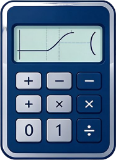
ES PLUS 300 Manual
Covers 2 ES PLUS 300 models: 47 keys arranged in 9 rows. The key layout specific to the 300ES PLUS: ÷R, GCD/LCM, Int/Intg, PreAns.
Casio · 2 models · 47 keys / 9 rows · updated 2026-11-03
The ES PLUS is the generation that made Natural Display mainstream: when you enter a square root, a fraction, or a power, the screen shows it as typeset mathematics instead of flattening it into one line of characters. Its key layout was later carried over by a large number of regional models, so this site treats it as the baseline layout for Casio scientific calculators - the differences of the two later generations, EX and CW, are all described relative to this layout.
Keyboard zones: learn the four blocks first
The layout recorded here has 47 keys in 9 rows, dividing into four blocks from the bottom upward. Remembering where the blocks sit pays off far more than counting key names one by one.
- The bottom block holds the digits and the four arithmetic operations: 0-9, the decimal point (printed as a comma "," on this layout), × ÷ + −, and the equals sign in the lower-right corner.
- The block above it is clearing and executing: DEL deletes one character, AC clears the whole line, and the two are not interchangeable - use DEL to fix a typo, AC to start over.
- The middle is the function area: sin / cos / tan, x², x^, √, log, ln, x⁻¹, and the (−) negative-sign key. The negative sign and the subtraction sign are two separate keys, which is the most common source of errors for beginners.
- The top is modes and switching: SHIFT, ALPHA, MODE, and the ⚙ key on this site's layout.
SHIFT and ALPHA: the two lines of small print on the key faces
Every key on this generation carries up to three printed layers: the main silkscreen label on the key face, the small print above it (the SHIFT layer), and the small print below it (the ALPHA layer). The order of operations is always "press the function-layer key first, then the target key", and a function layer applies only to the next keypress. The table below is generated directly from this site's layout data and matches the diagram above key by key.
| Key | SHIFT layer | ALPHA layer |
|---|---|---|
| MODE | SETUP | — |
| Abs | ÷R | — |
| x³ | : | — |
| x⁻¹ | x! | — |
| ▭/▭ | a b/c / d/c | — |
| √▭ | ³√▭ | — |
| x^▭ | ˣ√▭ | — |
| log | 10ˣ | — |
| ln | eˣ | — |
| (−) | A | — |
| °′″ | FACT / B | — |
| hyp | C | — |
| sin | sin⁻¹ / D | — |
| cos | cos⁻¹ / E | — |
| tan | tan⁻¹ / F | — |
| RCL | STO | — |
| ENG | ← | — |
| ( | % | — |
| ) | , / X | — |
| S⇔D | a b/c⇄d/c / Y | — |
| M+ | M− / M | — |
| 7 | CONST | — |
| 8 | CONV | — |
| 9 | CLR | — |
| DEL | INS | — |
| AC | OFF | — |
| × | nPr / GCD | — |
| ÷ | nCr / LCM | — |
| 1 | STAT | — |
| + | Pol / Int | — |
| − | Rec / Intg | — |
| 0 | Rnd | — |
| ., | Ran# / RanInt | — |
| ×10ˣ | π / e | — |
| Ans | DRG▸ / PreAns | — |
Four actions you use every day
- Power on/off: ON turns the unit on; the power-off combination follows the small print above the key face (on this layout the AC key is labeled EXIT above it, which exits rather than powers off).
- Entering setup: SHIFT -> MODE opens the setup menu, which holds the angle unit (DEG/RAD/GRA) and the number of display digits.
- Clearing and resetting: DEL backs up one character, AC clears the line; the full reset is in the setup menu and it wipes the memory variables.
- Reusing the previous result: the Ans key refers to the last calculation directly, so you do not have to retype numbers in a chain of calculations.
Nine rows of keys, checked row by row from the bottom up
On the real unit these 47 keys sit in nine rows, and the lower a key is, the more often you use it. The rows are described below in order from the bottom row upward; the row order matches the diagram above exactly, so the text will never talk about row 7 while the diagram is on row 6.
| Row (bottom to top) | Keys | What this row handles |
|---|---|---|
| Row 9 | 0 / ., / ×10ˣ / Ans / = | |
| Row 8 | 1 / 2 / 3 / + / − | |
| Row 7 | 4 / 5 / 6 / × / ÷ | |
| Row 6 | 7 / 8 / 9 / DEL / AC | |
| Row 5 | RCL / ENG / ( / ) / S⇔D / M+ | |
| Row 4 | (−) / °′″ / hyp / sin / cos / tan | |
| Row 3 | ▭/▭ / √▭ / x² / x^▭ / log / ln | |
| Row 2 | Abs / x³ / x⁻¹ / log▭ | |
| Row 1 | SHIFT / ALPHA / Arrow keys / MODE / ON |
The mode list and how to switch
MODE opens the mode menu, and you choose with the number keys or the arrow keys. Which entries appear depends on the specific model: the 991 line offers the most, and entry-level models such as 82/85/95 drop a few. The list below is the fullest set across the models this layout covers; on your own machine, what its menu shows is the authority.
- COMP: ordinary calculation; the great majority of problems are done here.
- CMPLX: Complex arithmetic plus polar/rectangular conversion, with i for the imaginary part.
- STAT: single-variable and paired-variable statistics, able to compute means, standard deviation, and regression.
- BASE-N: binary/octal/decimal/hexadecimal conversion and bit-wise operations, with negative numbers handled as complement form.
- EQN: quadratic equations, cubic equations, and systems of equations; enter the coefficients and it returns the roots.
- MATRIX: matrix definitions, determinants, and inverse matrices, up to sizes of the 3x3 kind.
- VECTOR: vector addition and subtraction, dot product, and cross product, kept separate from the matrix mode.
- TABLE: give a function and a step width to generate a table of values.
What the small symbols on the screen mean
| Screen symbol | Meaning | What to watch for |
|---|---|---|
| D / R / G | The current angle unit: degrees / radians / grads | When a trigonometry answer is wrong, look here first |
| Math | Natural Display is on, so fractions and radicals are typeset | Turning it off flattens the expression into one line of characters - it saves screen space but is harder to read |
| M | The memory variable M holds a non-zero value | Easy to forget it is still there when you reuse results across problems |
| STAT | The unit is currently in the statistics mode | Leave the statistics mode before an ordinary calculation, or you may read list data |
| ▲ / ▼ | There is more content above or below the visible part | Use the arrow keys to scroll a long expression or a long list |
| Fix / Sci / Norm | Result display format: fixed decimal places / significant digits / automatic | Fix truncates what you see, but the stored value keeps full precision |
| RCL / STO | The unit is waiting for you to choose a variable | At this point the number keys select a variable instead of entering digits |
| Screen message | Common cause | What to do |
|---|---|---|
| Syntax ERROR | An unclosed parenthesis, operators typed back to back, or a function missing its argument | Use the arrow keys to move the cursor to the position of the error and fix it with DEL |
| Math ERROR | An undefined operation such as division by zero, an even root of a negative number, or tan(90°) | Press AC to clear the line and recalculate, checking whether the angle unit is DEG or RAD |
| Stack ERROR | The nesting depth or number range exceeds what the model can hold | Split the calculation into two steps and carry the intermediate result in Ans |
Battery, screen, and long-term storage
Most models of this generation run on two power sources at once, a solar panel plus a button cell: the battery carries the load when indoor light is not enough, and with a dead battery strong light may bring the screen up briefly while the calculations stay unreliable. So "there is light, so the battery can wait" is wrong - confirm the battery is good before an exam.
- Changing the battery: note the polarity before you open the back cover; installed backwards it will not burn the unit out, but it will not light up either. Do one reset afterwards, or old settings may survive.
- A dim screen: adjust the contrast first (on this series by pressing repeatedly in MODE, or with SHIFT + the arrow keys), and only replace the battery if it still looks gray at the brightest setting.
- Cleaning: wipe the key faces with a dry, lint-free cloth; do not spray alcohol directly, because liquid seeping into the key gaps ruins the conductive rubber.
- Long periods of disuse: take the battery out and store it separately so that leaks cannot corrode the contacts - the most common unrepairable fault on older units.
Try this key layout directly in the browser
The /calculator page on this site uses this same layout data: switching models inside one family only changes the top silkscreen line and the color scheme, never the order of the keys. That is why the diagram on this page, the silkscreen table above, and the on-screen keyboard always agree - and it is also why we do not use scans of the manufacturer's manual.
Models in this series
Frequently asked questions
These questions apply to this series. For the general ones, see all FAQ entries.
Why doesn't sin(30) come out to 0.5?
The model's current angle unit isn't DEG. On Casio ES/EX use SHIFT + SETUP or the menu to switch to Degree; on CW press SETTINGS to reach the angle unit; on TI press DRG or the mode key to switch. The D / R / G marker at the top of the screen is the current unit.
How do I restore factory settings?
Casio: open the setup menu and find Reset (on ES/EX it's the Reset after SHIFT + MODE, on CW it's inside SETTINGS), choose All and confirm; this clears memory, variables, and settings. TI: press 2ND + + (MEM) to enter the MEM menu and choose Reset, or remove the battery and wait a few seconds. Before resetting, write down any formulas and data you need to keep.
What if I only want to clear variables, not reset all settings?
The Casio Reset menu usually has three levels: Setup Data, Memory, and All. Choosing Memory clears only the variables and Ans while keeping the angle unit and display settings. On TI-84 the MEM menu reached with 2ND + + has separate All, Defaults, and Vars options; choose Vars.
What does Math ERROR mean?
The operation is mathematically undefined or out of range: division by 0, an even root of a negative number, tan(90°), or an overly large factorial argument all trigger it. Press AC or CLEAR to clear the line, then check the angle unit and order of operations. It doesn't mean the device is broken.
How do I locate a Syntax ERROR?
It's usually an unclosed parenthesis, two operators in a row, or a function missing an argument. On Casio use the arrow keys to move the cursor to the error and fix it; on TI-84 press 2 (Goto) to jump to the error location. Once fixed you don't need to retype the whole line.
Is Stack ERROR an out-of-memory problem?
It's a nesting or numeric stack overflow, not insufficient storage. It's common with deeply nested parentheses, repeated power operations, or very large factorials. Split the calculation into two steps and carry the intermediate result with Ans.
The result is always a fraction; how do I show it as a decimal?
On Casio press S⇔D (FORMAT on CW) to toggle between fraction and decimal; you can also change the result display to LineIO / Decimal in the settings. On TI press 2ND + ENTER (F◂▸D) or just enter the value with a decimal point. Toggling only changes the display, not the stored value.
How do I turn 0.375 into 3/8?
Enter 0.375 and press S⇔D (FORMAT on CW, 2ND + ENTER on TI) to try converting it to a fraction. If it won't convert, the decimal can't be represented within the current denominator precision (for example an approximation of a repeating decimal that was truncated).