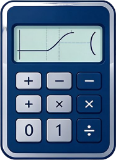
TI-30XS MultiView Manual
Covers 1 models: 42 keys / 9 rows, with a four-line display you can scroll up and down through past input.
Texas Instruments · 1 models · 42 keys / 9 rows · updated 2026-11-02
MultiView means that several expressions and results stay side by side on the same screen and you can use the direction keys to go back to an earlier one and keep editing it. This generation switched the key silkscreen to lower case and gave fractions, tables and data statistics their own keys, which is why it has more keys than the IIS.
Nine rows of keys, read from the top down
The MultiView key layout is similar to the IIS but rearranged: the top row groups 2nd, mode, delete and the direction keys together, and enter sits on the right of the bottom row. The row-by-row comparison follows.
| Row (top down) | Key layout | What this row handles |
|---|---|---|
| Row 1 | 2nd / mode / delete / Arrow keys | |
| Row 2 | log / prb / data | |
| Row 3 | ln / n/d / ×10ⁿ / table / clear | |
| Row 4 | π / sin / cos / tan / ÷ | |
| Row 5 | x^ / x⁻¹ / ( / ) / × | |
| Row 6 | x² / 7 / 8 / 9 / − | |
| Row 7 | x yzt/abc / 4 / 5 / 6 / + | |
| Row 8 | sto▸ / 1 / 2 / 3 / ◂▸ | |
| Row 9 | on / 0 / . / (−) / enter |
What each menu key handles
- mode: sets the angle unit, the display mode, and whether scientific notation is used.
- prb: probability functions: permutations, combinations and factorials.
- data: statistics data entry and viewing.
- table: turns a function into a table of values with two columns side by side.
- ◂▸: moves the cursor left and right inside the expression, which is the precondition for editing a past expression.
- x▫/▫ and n/d: fraction templates that put the stacked numerator-and-denominator structure straight on the line.
2nd-layer silkscreen labels
| Key | SHIFT layer | ALPHA layer |
|---|---|---|
| mode | quit | — |
| delete | insert | — |
| log | 10ˣ | — |
| prb | angle | — |
| data | stat | — |
| ln | eˣ | — |
| n/d | U n/d | — |
| ×10ⁿ | U n/d▸ | — |
| table | f↔d | — |
| π | hyp | — |
| sin | sin⁻¹ | — |
| cos | cos⁻¹ | — |
| tan | tan⁻¹ | — |
| ÷ | K | — |
| x^ | ˣ√ | — |
| ( | % | — |
| ) | ▸% | — |
| x² | √ | — |
| − | ◂ | — |
| x yzt/abc | clear var | — |
| + | ▸ | — |
| sto▸ | recall | — |
| on | off | — |
| . | ↺ | — |
| (−) | ans | — |
How to make the four-line display save you time
- Several calculations at once: press enter after each one, the result stays on screen, and you type the next without paging as long as you stay within four lines.
- Edit the previous line and re-run: use the direction keys to return to an expression, position with ◂▸, change a number, then press enter to append the new result below.
- Comparing answers: keeping the original expression and its result on screen at the same time stops you from copying the wrong line.
- Working with table: the table of values fills the whole screen, so use clear to get back to the calculation screen when you are done looking.
What MathPrint gains you and where it traps you
This generation typesets fractions, radicals and powers in the form they take on paper, and it is clearly more readable than the IIS. But typesetting also brings a new failure mode: if you press enter before every box in a template is filled, the machine either skips that position or throws a syntax error outright, while the screen still looks roughly right.
- After you press a fraction or radical template, the cursor stops in each box in turn; fill them all before you confirm.
- Beyond two levels of nesting the screen gets very crowded, and it is easier to miss parentheses when you read the expression back.
- Back in plain display the parentheses multiply, so read the expression group by group instead of scanning character by character.
The table key: a function as a table of values
This is the most practical difference from the IIS: the table of values has its own key, so you do not have to change mode first. A table has only three parameters: the function, the start value and the step. Everything else is done by scrolling with the direction keys.
- Press table to enter, then type the f(x) expression first.
- Set the start value and the step; the step does not have to be a whole number.
- Scroll through the rows with the direction keys and watch whether two adjacent rows change sign.
- When you are done, press clear to return to the calculation screen; the table is not kept automatically.
How the two fraction keys divide the work
n/d and x▫/▫ are not a duplicate design: the first handles the form of a result you already have, the second inserts a fraction structure in the middle of an expression. Add the switching on ◂▸ and this machine has three layers of fraction operations, more flexible than the single toggle key on the IIS but also easier to mix up.
- x▫/▫: inserts the fraction template, one box each for numerator and denominator, nestable inside a long expression.
- n/d: switches the display form between improper fraction and mixed number.
- ◂▸: switches the result form between fraction and decimal and similar; check the actual unit for the exact behaviour.
The prb menu: the probability trio
- Factorial: valid only for non-negative integers; decimals and negative numbers error out.
- Permutations and combinations: the argument order is n first and r second, and reversing them gives a completely different result.
- Random numbers: different on every run and not reproducible; when you record an experiment, write in a fixed data set yourself.
Three situations for storing and recalling variables
sto▸ is the store prefix: press it and then a variable name to write the current value. To get it back, press the variable name directly or return to the variable menu through the 2nd layer. There are far more variables than the single memory register on the IIS, and they survive powering off, but a reset wipes them all at once.
- Store parameters: keep a, b and c stored so later expressions refer to them directly, and changing one coefficient does not mean rewriting the whole expression.
- Store intermediate results: this avoids transcription errors and is the most useful trick in multi-step problems.
- Think before you reset: once variables are cleared there is no way to recover them, so copy anything important onto paper first.
The four-line display in the exam room
- Strength: re-running an edited expression does not mean retyping all of it, which saves time on multi-step problems.
- Weakness: the larger screen draws more power, and with four lines sitting next to each other it is easy to copy from the wrong one.
- Advice: press clear after each part so the current problem and the previous one stay visually separate.
Errors and troubleshooting
| What the screen says | Usual cause | What to do |
|---|---|---|
| Syntax ERROR | A parenthesis or template box left unfilled, two operators in a row | Move with ◂▸ to the bad spot and fix it with delete |
| Empty or odd result | The statistics list was never entered, or the frequency is 0 | Go back to data and check the entries |
| Wrong number of display digits | A fixed number of decimal places was set in mode | Set the display mode back to automatic (Float) |
Battery and upkeep
- Power is solar assist plus a button-cell battery; running fine in bright light does not mean the battery is healthy, so check the marking on the back cover before an exam.
- Adjust the contrast with 2nd + direction keys; if the screen is completely dark, try the contrast before replacing the battery.
- Clean with a dry cloth and never spray alcohol directly on it; take the battery out for long storage to prevent leakage.
- After a battery change the angle unit and display mode return to their defaults, so re-check them before you start a problem.
Models in this series
Related operations for this series
- Switch the angle unit (DEG / RAD / GRA) Get the angle unit wrong and sin(30) comes out wrong. Here is the complete key path across four generations of key layout.
- Statistics: mean, sample standard deviation, and population standard deviation On the same data set, σx and sx differ by the n−1 factor; before writing up a report, confirm which one you used.
- Generate a table of function values Three things to set: start, end, and step; a wrong step yields a misleading table.
- Permutations and combinations (nPr / nCr) On most models nPr and nCr are printed above the multiply and divide keys; elsewhere go through the probability menu.
- Clearing statistic lists and statistic registers Leftover data from the previous problem is the number-one cause of strange statistics results.
- Bivariate statistics and linear regression Enter x and y as pairs, then read a, b, and r; column misalignment during entry is the most common source of errors.
Frequently asked questions
These questions apply to this series. For the general ones, see all FAQ entries.
Why doesn't sin(30) come out to 0.5?
The model's current angle unit isn't DEG. On Casio ES/EX use SHIFT + SETUP or the menu to switch to Degree; on CW press SETTINGS to reach the angle unit; on TI press DRG or the mode key to switch. The D / R / G marker at the top of the screen is the current unit.
How do I restore factory settings?
Casio: open the setup menu and find Reset (on ES/EX it's the Reset after SHIFT + MODE, on CW it's inside SETTINGS), choose All and confirm; this clears memory, variables, and settings. TI: press 2ND + + (MEM) to enter the MEM menu and choose Reset, or remove the battery and wait a few seconds. Before resetting, write down any formulas and data you need to keep.
What if I only want to clear variables, not reset all settings?
The Casio Reset menu usually has three levels: Setup Data, Memory, and All. Choosing Memory clears only the variables and Ans while keeping the angle unit and display settings. On TI-84 the MEM menu reached with 2ND + + has separate All, Defaults, and Vars options; choose Vars.
What does Math ERROR mean?
The operation is mathematically undefined or out of range: division by 0, an even root of a negative number, tan(90°), or an overly large factorial argument all trigger it. Press AC or CLEAR to clear the line, then check the angle unit and order of operations. It doesn't mean the device is broken.
How do I locate a Syntax ERROR?
It's usually an unclosed parenthesis, two operators in a row, or a function missing an argument. On Casio use the arrow keys to move the cursor to the error and fix it; on TI-84 press 2 (Goto) to jump to the error location. Once fixed you don't need to retype the whole line.
The result is always a fraction; how do I show it as a decimal?
On Casio press S⇔D (FORMAT on CW) to toggle between fraction and decimal; you can also change the result display to LineIO / Decimal in the settings. On TI press 2ND + ENTER (F◂▸D) or just enter the value with a decimal point. Toggling only changes the display, not the stored value.
How do I turn 0.375 into 3/8?
Enter 0.375 and press S⇔D (FORMAT on CW, 2ND + ENTER on TI) to try converting it to a fraction. If it won't convert, the decimal can't be represented within the current denominator precision (for example an approximation of a repeating decimal that was truncated).
Why are the negative sign and the minus sign on two separate keys?
The minus sign is a binary operator; the negative sign (−) is a number sign. In 5 − (−3) they must be kept separate, otherwise the device reads two minuses in a row as a syntax error. On TI models the two keys are (−) and −.