Collège fx-92+ Manual
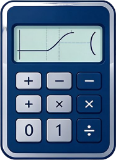
Covers 1 Collège fx-92+ models: 48 keys arranged in 9 rows. fx-92+ Collège: eˣ joins row 4, ; moves to the start of row 5, Rép above ×.
Casio · 1 models · 48 keys / 9 rows · updated 2026-11-03
The Collège line corresponds to the French lower-secondary (college) curriculum. Its keys are arranged much like the CW line, but the silkscreen labels are French, and it keeps the Rép key (repeat the previous operation) that French classrooms use often.
French silkscreen labels
- ⌂: return to the main screen (the home key on the French interface).
- ≡: open the menu list.
- Rép: Répéter, repeating the previous calculation or operation.
- x↔□ and f(x): switch between an expression and a function table, matching the function-table exercises in the French curriculum.
This unit's two-layer silkscreen table
Every row of the table below corresponds to one key in the diagram above, generated directly from the layout data. The French labels are not translated into English - the table shows exactly what is printed on the unit, which avoids the mismatch of a tutorial saying OFF while the machine says ARRÊT.
| Key | SHIFT layer | ALPHA layer |
|---|---|---|
| HOME | ACCUEIL | — |
| SETTINGS | CONFIG | — |
| x↔□ | VARIABLE | — |
| f(x) | FONCTION | — |
| ▤ | CATALOGUE | — |
| ⋯ | OUTILS | — |
| x | QR | — |
| ▭/▭ | ▭▭/▭ | — |
| √▭ | ∛▭ | — |
| eˣ | ln | — |
| ; | : | — |
| sin | sin⁻¹ | — |
| cos | cos⁻¹ | — |
| tan | tan⁻¹ | — |
| ( | = | — |
| 7 | π | — |
| DEL | INS | — |
| AC | OFF | — |
| 4 | A | — |
| 5 | B | — |
| 6 | C | — |
| × | Rép | — |
| ÷ | ▭/▭ | — |
| 1 | D | — |
| 2 | E | — |
| 3 | F | — |
| + | °′″ | — |
| − | (−) | — |
| 0 | x | — |
| , | y | — |
| ×10ˣ | z | — |
| EXE | ≈ | — |
Menus and modes
The Collège has no MODE key and none of the CW's SETTINGS key either: both functions and setup are entered through ≡, and ⌂ returns you to the main screen. So the two steps from older tutorials - MODE to pick a mode, SHIFT+MODE to enter setup - both fail on this unit.
- ≡: opens the menu list, which holds both the function modes and the settings.
- ⌂: returns to the main screen, equivalent to HOME on the other series.
- Rép: repeats the previous operation, which saves a lot of typing when you drill similar problems in class.
- x↔□ and f(x): switch between an expression and a function table, matching the function-table exercises of the French curriculum.
- FORMAT: switches the result display format, equivalent to S⇔D on the other series.
Use and maintenance
- The angle unit is changed in the settings section of the menu; afterwards return to the calculation screen and check the marker in the status line.
- The French interface uses French curriculum terms (for instance arrondi for rounding or integer conversion), so read the menus against your textbook's vocabulary.
- Replace the battery as marked on the back cover and reset once afterwards; take it out for long storage to guard against leaks.
- If the screen dims, adjust the contrast first instead of changing the battery outright.
Its relationship to the CW
The two layouts share a similar key skeleton, but the Collège lacks the CW's SETTINGS key and runs setup through the ≡ menu, and the function keys right of the digits are rearranged as well. So do not apply a CW key sequence to this unit directly; the task pages on this site give their sequences separately, per family.
It follows the French lower-secondary curriculum
Collège names the French lower-secondary stage (from 6e to 3e, spanning cycle 3 and cycle 4). This unit's function set is trimmed to that stage: proportion and percentages, linear functions, statistics and probability, and basic geometry calculations are the main line; Complex numbers, matrices, and integrals do not belong to this stage, so do not expect menus for them.
French vocabulary
When you read a French interface or textbook, these words come up most often. Note that they are menu and screen text, not key-face silkscreen labels; for those, use the table earlier on this page.
| French | English | Meaning |
|---|---|---|
| arrondi | rounding | Rounding, usually in the result display settings |
| affichage | display | Display format and number of digits |
| mode | mode | Mode (calculation, statistics, table, and so on) |
| statistiques | statistics | Statistics |
| tableau | table | Function value table |
| fonction | function | Function |
| racine carrée | square root | Square root |
| fraction | fraction | Fraction |
| degré / radian | degree / radian | Degree / radian |
| répéter | repeat | Repeat the previous operation |
Three typical uses of Rép
- Repeated similar calculations: after finishing one item, press Rép to repeat the previous calculation structure and change only the number you feed in, which is faster than re-entering the whole expression.
- Checking your work: press Rép twice on the same expression, and the result should match a fresh entry; if it does not, the previous input was edited along the way.
- Following along in class: when the teacher expands a calculation step by step, Rép lets you keep up without copying the full expression of every step.
Function-table practice with x↔□ and f(x)
"Given a function, fill in a table of values, and observe the trend" is a frequent task in the French lower-secondary curriculum. This unit puts the entry points on two keys: one switches between the expression and the function definition, the other opens the function table. A good practice order is to write the expression first, then generate the table, observe where it increases or decreases, and finally return to the expression to change a parameter and watch how the table responds.
- The table's start and step set the resolution: too large a step skips straight over the interval you wanted to see.
- When you change only a parameter and not the structure, editing the expression beats retyping it, and Rép can repeat the previous operation.
- When a value in the table disagrees with your hand calculation, check the angle unit and the display format first, then the nesting of parentheses in the expression.
French exams and calculator rules
Rules for calculators at the French lower-secondary leaving exam (DNB) are published in the official documents of the year and can change between school years. This site describes only what to press on the unit; it does not judge whether a model is permitted: check the official list by the complete model name, and confirm whether a specific mode is required or memory must be cleared.
Three common misuses
- Treating ≡ as the CW's SETTINGS: it holds both functions and settings, sits one level deeper, and should not be pressed repeatedly on the calculation screen.
- Expecting FORMAT to change the angle unit: FORMAT only switches the display format, while the angle unit lives in the settings.
- Reading Rép as "recalculate": it repeats the previous operation, so if the input was changed in between, the result naturally differs.
How to use the rounding setting
In the display settings of the French interface, arrondi (rounding) usually appears together with the number of digits. There is one practical rule: keep extra digits in the intermediate steps and round the final answer as the question asks. Rounding at the very first step lets the error grow along the expression, and in the end your number will not match the expected answer.
- If the question says arrondir au centième: keep two decimal places.
- If the question says au millième: keep three decimal places.
- If the question gives no number of digits, judge from the precision of the data in the question instead of defaulting to two.
Models in this series
Frequently asked questions
These questions apply to this series. For the general ones, see all FAQ entries.
Why doesn't sin(30) come out to 0.5?
The model's current angle unit isn't DEG. On Casio ES/EX use SHIFT + SETUP or the menu to switch to Degree; on CW press SETTINGS to reach the angle unit; on TI press DRG or the mode key to switch. The D / R / G marker at the top of the screen is the current unit.
How do I restore factory settings?
Casio: open the setup menu and find Reset (on ES/EX it's the Reset after SHIFT + MODE, on CW it's inside SETTINGS), choose All and confirm; this clears memory, variables, and settings. TI: press 2ND + + (MEM) to enter the MEM menu and choose Reset, or remove the battery and wait a few seconds. Before resetting, write down any formulas and data you need to keep.
What if I only want to clear variables, not reset all settings?
The Casio Reset menu usually has three levels: Setup Data, Memory, and All. Choosing Memory clears only the variables and Ans while keeping the angle unit and display settings. On TI-84 the MEM menu reached with 2ND + + has separate All, Defaults, and Vars options; choose Vars.
What does Math ERROR mean?
The operation is mathematically undefined or out of range: division by 0, an even root of a negative number, tan(90°), or an overly large factorial argument all trigger it. Press AC or CLEAR to clear the line, then check the angle unit and order of operations. It doesn't mean the device is broken.
How do I locate a Syntax ERROR?
It's usually an unclosed parenthesis, two operators in a row, or a function missing an argument. On Casio use the arrow keys to move the cursor to the error and fix it; on TI-84 press 2 (Goto) to jump to the error location. Once fixed you don't need to retype the whole line.
The result is always a fraction; how do I show it as a decimal?
On Casio press S⇔D (FORMAT on CW) to toggle between fraction and decimal; you can also change the result display to LineIO / Decimal in the settings. On TI press 2ND + ENTER (F◂▸D) or just enter the value with a decimal point. Toggling only changes the display, not the stored value.
How do I turn 0.375 into 3/8?
Enter 0.375 and press S⇔D (FORMAT on CW, 2ND + ENTER on TI) to try converting it to a fraction. If it won't convert, the decimal can't be represented within the current denominator precision (for example an approximation of a repeating decimal that was truncated).
Why are the negative sign and the minus sign on two separate keys?
The minus sign is a binary operator; the negative sign (−) is a number sign. In 5 − (−3) they must be kept separate, otherwise the device reads two minuses in a row as a syntax error. On TI models the two keys are (−) and −.